Easiest way to remove the Windows watermark from your screen
After reading many instructions on the internet, I realize that the authors are using the same method, which is to edit registry to remove the Windows watermark on the bottom-right corner of the screen. You might not know, registry is like the heart of a Windows system. Honestly, intervention in registry is very risky and not recommend. There is a better way and not generally known, which is activate your Windows using a 180-day trial license. In this post today, we will move in this direction.
Step 1: Get the KMS client product key from Microsoft homepage.
I wrote a detailed instruction about this step before. It’s here.
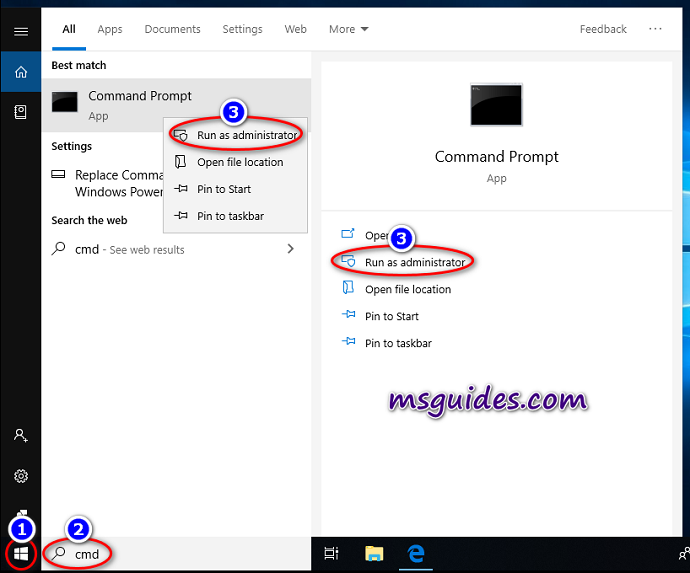
Step 2: Open command prompt as admin.
Please follow instructions here to run it with admin rights.
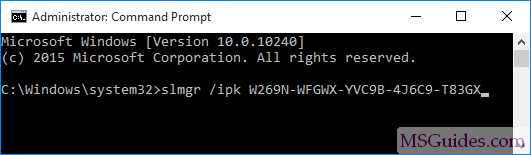
Step 3: Install the product key you got above. Type the command then press Enter.
In this example, I am using Windows 10 Professional so the client key here is “W269N-WFGWX-YVC9B-4J6C9-T83GX“.
Step 4: Set main KMS server.
kms8 is one of servers I have managed. You can also use other public servers on the Net if they are from a credible source.

Step 5: Activate your Windows using “ato” command.
Once your Windows is activated successfully, the watermark will be removed automatically.

Note: After following the steps above, if the watermark is not removed, it means your Windows is not activated successfully. In this case, you can create a ticket in the community or email me.
If you would have any questions or concerns, please leave your comments. I would be glad to explain in more details. Thank you so much for all your feedback and support!


after the latest microsoft update on my laptop its showing win11 insider preview build with an expiry date of something tried your methods but didn’t work out, please help me out if you can.
tysm i came only to remove the watermark and got free win 11 pro